This tutorial is based on the Visual Paradigm guide “What is ArchiMate? How to Draw ArchiMate Diagram?” It explains ArchiMate fundamentals and provides step-by-step instructions for creating diagrams in Visual Paradigm, focusing on a practical example of modeling hospital patient discharge procedures from a business process viewpoint.
What is ArchiMate?
ArchiMate is an open and independent enterprise architecture modeling language developed by The Open Group. It provides a visual notation to describe, analyze, and visualize the relationships among different business domains in an organization.
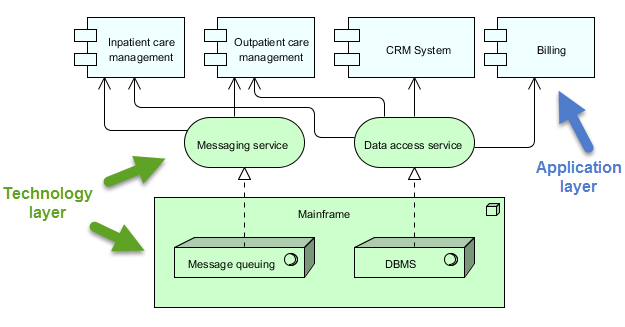
Key domains include:
- Products and services
- Business processes
- Organizational structures
- Information flows
- IT systems and applications
- Technical and physical infrastructure
ArchiMate enables stakeholders (e.g., business analysts, architects, managers) to communicate complex architectures clearly and consistently.
Why Use ArchiMate?
ArchiMate addresses diverse stakeholder concerns by providing contextual views:
- Data architects — Visualize data requirements for products/services.
- Business analysts — Relate logical processes to physical implementations.
- Enterprise architects — Optimize alignment between applications and infrastructure.
It supports service-oriented modeling, impact-of-change analysis, and decision-making in dynamic enterprises.
How Are Model Elements Organized in ArchiMate?
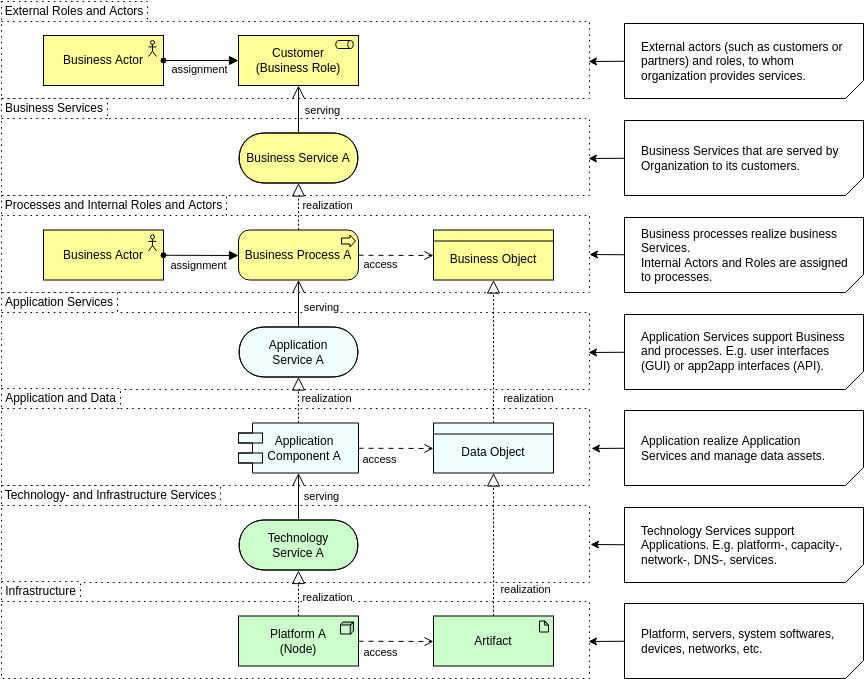
ArchiMate structures elements into three core layers (plus extensions in later versions like ArchiMate 3):
- Business Layer (top): Focuses on services provided to external customers, business processes, actors, and roles.
- Application Layer (middle): Describes software applications that support business services.
- Technology Layer (bottom): Covers infrastructure (hardware, networks, devices) that realizes applications.
Elements in lower layers “realize” or implement those above. Relationships show dependencies, such as “realization,” “assignment,” “association,” etc.
Example: An application component (application layer) might be realized by infrastructure services (technology layer) like messaging and data access.
Tutorial Goal
This tutorial demonstrates drawing an ArchiMate diagram modeling the business process for discharging hospital patients. For simplicity, it focuses primarily on the Business Layer.
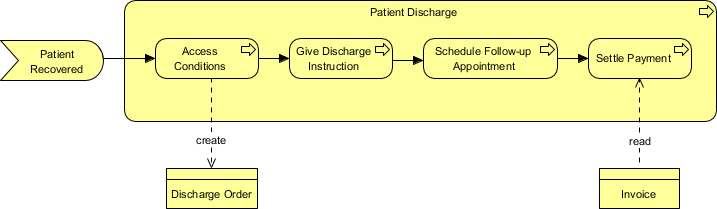
The final diagram will resemble a business process viewpoint showing events, processes, roles, services, and objects involved in patient discharge.
Software Used
The tutorial uses Visual Paradigm (Enterprise edition recommended). You can download a free trial from the Visual Paradigm website.
Step-by-Step: Drawing the ArchiMate Diagram
1. Start Visual Paradigm and Create a New Project
- Launch Visual Paradigm.
- Create a new project (File > New Project) or open an existing one.
2. Create a New ArchiMate Diagram

- From the toolbar, select Diagram > New.
- In the New Diagram window, choose ArchiMate Diagram.
- Click Next.
- Name the diagram (e.g., “Discharging Patients”).
- Click OK.
This opens a blank ArchiMate canvas with the diagram toolbar on the left, containing ArchiMate elements categorized by layer (Business, Application, Technology, etc.).
3. Add Business Elements

ArchiMate toolbars group elements by type. Hover over tools to see names.
- Create a Business Event (starting trigger):
- Select the Business Event tool from the toolbar.
- Drag and drop it onto the diagram.
- Name it (e.g., “Patient Ready for Discharge”).
- Add Business Processes:
- Use the Business Process tool to add core processes.
- Examples: “Assess Discharge Readiness”, “Prepare Discharge Summary”, “Finalize Billing”, “Patient Checkout”.
- Add Business Roles/Actors:
- Use Business Actor or Business Role tools.
- Examples: “Doctor”, “Nurse”, “Billing Clerk”, “Patient”.
- Add Business Services:
- Use Business Service for external/internal services.
- Example: “Discharge Planning Service”.
- Add Business Objects:
- Use Business Object for information entities.
- Examples: “Medical Record”, “Invoice”, “Discharge Instructions”.
4. Connect Elements with Relationships

- Use connector tools from the toolbar (e.g., Triggering, Flow, Assignment, Access, Serving).
- Common relationships in business processes:
- Triggering (arrow): Events trigger processes.
- Flow (arrow): Sequence between processes.
- Assignment (line with dot): Roles assigned to processes.
- Serving (arrow): Services used by actors/processes.
- Access (dashed arrow): Processes read/write objects.
- Example connections:
- “Patient Ready for Discharge” (event) → triggers → “Assess Discharge Readiness” (process).
- “Doctor” (role) → assigned to → “Prepare Discharge Summary” (process).
- Process → accesses → “Invoice” (object).
5. Arrange and Format the Diagram
- Drag elements to arrange in logical flow (left-to-right or top-to-bottom).
- Use alignment guides for neatness.
- Resize shapes as needed.
- Add nesting (e.g., group related processes inside a collaboration).
- Format colors/styles via the properties pane (Visual Paradigm uses standard ArchiMate colors: yellow for business, blue for application, green for technology).
6. Finalize and Review
- Name connectors for clarity (e.g., “read” on an access relationship).
- The completed diagram should visually represent the discharge workflow, showing triggers, sequences, responsibilities, and data interactions.
- Validate against ArchiMate rules (Visual Paradigm enforces notation compliance).
Related Links
- What Visual Paradigm offers for ArchiMate 3 support
- Learn more about ArchiMate 3 from The Open Group, a global consortium for IT standards
Key ArchiMate Concepts Covered in This Example
- Viewpoints: This example uses a Business Process Viewpoint to focus on processes, events, and roles.
- Layers: Limited to Business Layer for simplicity.
- Relationships: Emphasis on triggering, flow, assignment, and access.
Additional Tips from Visual Paradigm
- Explore other layers (Application/Technology) for full-stack views.
- Use viewpoints for stakeholder-specific diagrams (e.g., Organization, Information Structure).
- Visual Paradigm supports full ArchiMate 3+ notation, nesting, model exchange, and customization.
This tutorial provides a hands-on introduction to ArchiMate modeling. Practice with your own scenarios, and expand to multi-layer diagrams for comprehensive enterprise architecture views. For advanced features like viewpoints or AI-assisted diagramming, refer to Visual Paradigm’s documentation.
Visual Paradigm Tools and Resources for ArchiMate Modeling
Visual Paradigm is a leading, Open Group-certified tool for ArchiMate (supporting up to version 3.2 as of December 2025). It offers robust features like full notation support, viewpoint management, TOGAF integration, and innovative AI-powered diagram generation for rapid prototyping.
Key Tools in Visual Paradigm for ArchiMate
- Desktop Edition (Enterprise recommended): Full-featured for professional modeling, including AI Diagram Generator for ArchiMate, custom viewpoints, resource catalogs, and real-time collaboration.
- Visual Paradigm Online (Free Edition available): Web-based tool for quick ArchiMate diagrams – ideal for beginners or lightweight use. Supports drag-and-drop and templates.
- AI Diagram Generator & Chatbot: Generate compliant ArchiMate diagrams and all official viewpoints instantly from text prompts (e.g., “Model a coffee shop’s business layer with SaaS support”). Refine iteratively via natural language.
- TOGAF ADM Guide-Through: Integrates ArchiMate modeling directly into TOGAF phases for structured enterprise architecture development.
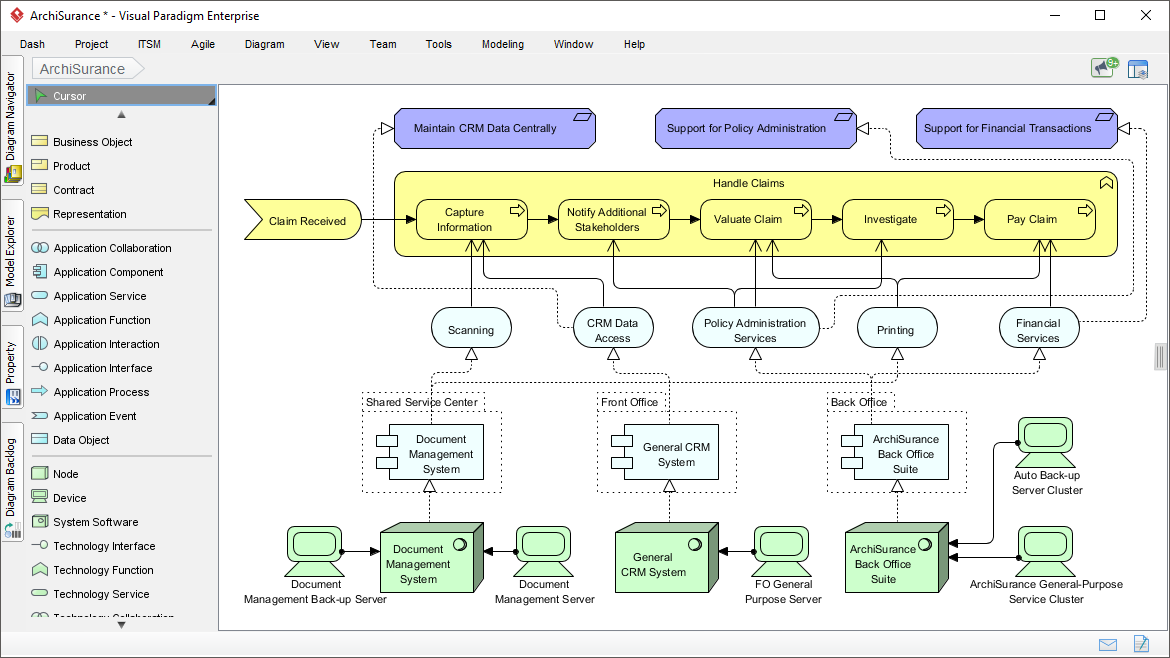
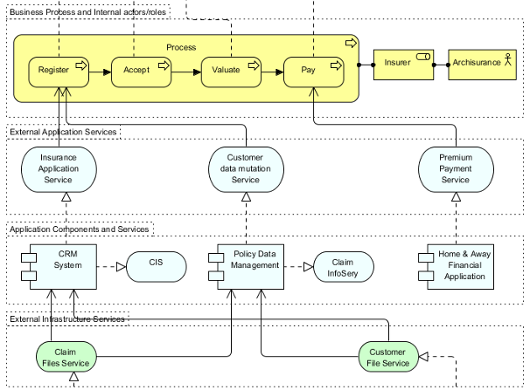
Here are some example screenshots of ArchiMate diagrams and the interface in Visual Paradigm:


Recommended Articles and Tutorials
These official Visual Paradigm resources provide step-by-step guidance, examples, and best practices:
- Comprehensive Tutorial on ArchiMate – In-depth overview of layers, elements, relationships, and useful diagram types with examples. Link: https://guides.visual-paradigm.com/comprehensive-tutorial-on-archimate/
- Full ArchiMate Viewpoints Guide (with Examples) – Detailed handbook covering all 23 official viewpoints, complete with diagram examples drawn in Visual Paradigm. Link: https://www.visual-paradigm.com/guide/archimate/full-archimate-viewpoints-guide/
- ArchiMate Diagram Tutorial – Step-by-step guide on creating diagrams, including online tool access. Link: https://online.visual-paradigm.com/diagrams/tutorials/archimate-tutorial/
- How to Draw ArchiMate Diagrams – Practical tutorial with notations and sample creation. Link: https://www.visual-paradigm.com/tutorials/how-to-draw-archimate-diagram.jsp
- Generate ArchiMate Diagrams and Viewpoints Instantly with AI – Explains the new AI feature for fast generation (updated December 2025). Link: https://updates.visual-paradigm.com/releases/ai-archimate-viewpoints-generator/
- Using ArchiMate with TOGAF ADM – Integration guide for structured EA processes. Link: https://www.visual-paradigm.com/guide/archimate/using-archimate-tool-with-togaf-adm/
Start with the free online tool or trial the desktop version to experiment with the “Coffee Around The Corner” case study – the AI generator can create a baseline model from a simple prompt!