
Instant Collaboration: How to Share Model Canvas Strategies via URL
In the fast-paced world of strategic planning and content creation, the ability to collaborate in real-time is not just a luxury—it is a necessity. Visual Paradigm Online has recently introduced a game-changing update to its Model Canvas, the all-in-one Intelligent Strategy Workspace. While users have long appreciated the ability to export AI-generated strategies into professional formats like .doc, markdown, and .csv, the workflow has evolved.
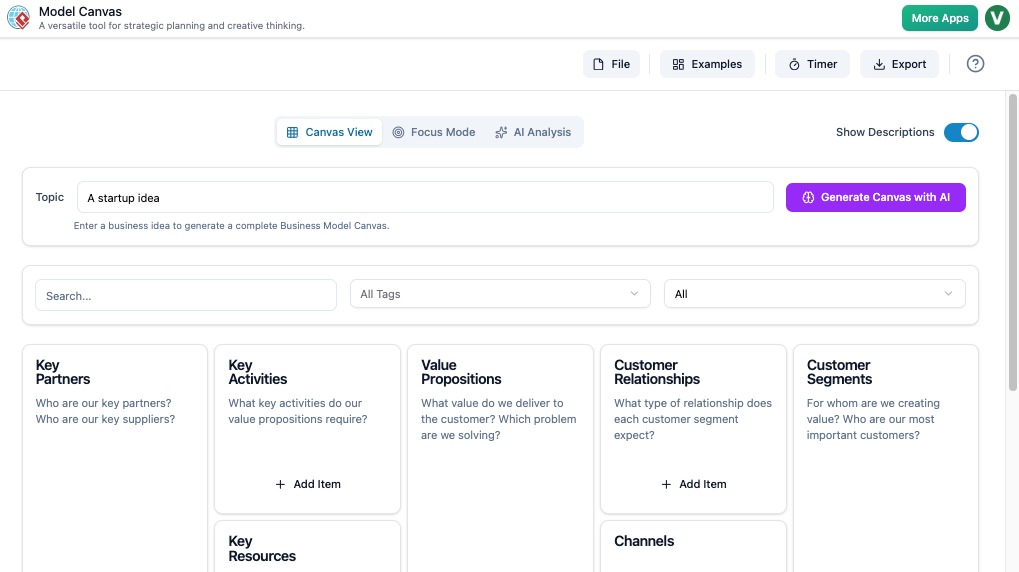
We are thrilled to announce the arrival of Instant Sharing via URL. This feature eliminates the friction of emailing documents back and forth, allowing you to share your Lean Canvas, SWOT Analysis, or Customer Journey Map with a single click. This tutorial will guide you through the specific steps to leverage this feature, ensuring your team stays aligned and your decision-making process is accelerated.
Key Concepts
Before diving into the workflow, it is essential to understand the core components of the Visual Paradigm Online ecosystem that make this update so powerful.
- Model Canvas: An Intelligent Strategy Workspace that provides an extensive library of frameworks (such as Business Model Canvas, Empathy Maps, and OKRs). It functions as both a strategic planning tool and an AI article writer/editor.
- AI-Powered Generation: The underlying engine that assists users in generating content, analyzing strategies, and structuring complex business models automatically.
- URL Sharing: The newly released capability that generates a unique, accessible web link for a specific saved document, allowing external viewers to access the canvas through a standard web browser without needing specialized software.
Guidelines: Step-by-Step Tutorial
Sharing your strategic work or AI-generated article drafts is now a seamless process. Follow these guidelines to generate and distribute your canvas URL.
Step 1: Finalize and Save Your Work
The sharing functionality is tied to the storage state of your document. You cannot share a temporary or unsaved draft.
- Open your Model Canvas and complete your current editing session.
- Navigate to the top menu bar.
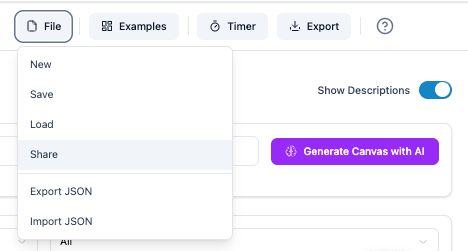
- Click File > Save.
- Note: Ensure you see the confirmation that your changes have been saved to the cloud before proceeding.
Step 2: Access the Sharing Dialog
Once your document is securely saved, you can access the new sharing features.
- Return to the File menu in the top navigation bar.
- Scroll down and select Share.
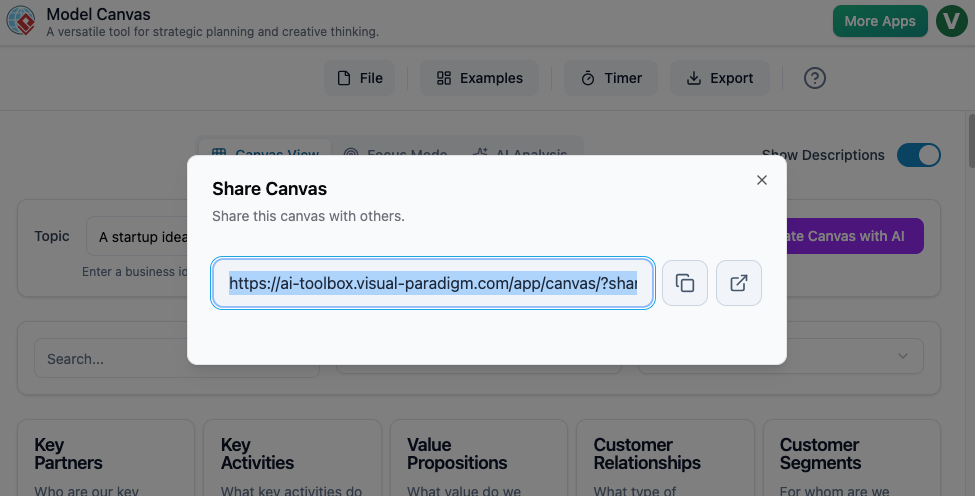
- This action will trigger the Share Canvas dialog box to appear on your screen.
Step 3: Copy and Distribute
The system will automatically generate a unique link pointing to your specific strategy document.
- Locate the URL field within the dialog box.
- Click the Copy button to save the link to your clipboard.
- Paste the link into your communication channel of choice (Slack, Microsoft Teams, Email, etc.) to share it with stakeholders.
Tips and Tricks
Maximize the utility of the URL sharing feature with these productivity hacks.
- Streamline AI Article Editing: If you are using the Model Canvas as an AI article generator or editor, use the URL feature to send drafts to human editors for a quick review before exporting the final markdown or .doc file.
- Remote Presentations: Instead of screen sharing via video conferencing software (which can lag), send the URL to meeting participants so they can view the canvas in high resolution on their own screens while you talk.
- Bypass Attachments: Use the URL to avoid file size limits often imposed by email servers, especially when dealing with complex, data-heavy canvases.
Best Practices
To ensure security and effective collaboration, adhere to these industry standards when sharing your strategies.
- Version Control: Always save your document immediately before generating a link. If you make changes after sharing the link, ensure the document is saved again so viewers see the most current version.
- Contextualize the Share: When sending the URL, always include a brief message explaining what the viewer is looking at (e.g., “Here is the updated SWOT analysis for Q3 marketing”). This is particularly important for external consultants or clients.
- Browser Compatibility: Remind your stakeholders that they can access the link via any modern web browser; no installation of Visual Paradigm software is required on their end.
Checklist
Before closing your workspace, run through this quick audit to ensure your strategy has been shared successfully.
- Document Saved: Have you explicitly clicked File > Save?
- Menu Navigation: Did you locate File > Share successfully?
- URL Generated: Did the dialog box display a valid link?
- Link Copied: Did you copy the URL to your clipboard?
- Access Tested: (Optional) Did you open the link in an incognito window to verify it loads correctly?
By following this tutorial, you can leverage the full power of Visual Paradigm Online’s Model Canvas to foster instant collaboration. Whether you are defining a business model or drafting content with AI, a simple URL is now all that stands between you and faster feedback loops.
Resources
- Business Model Canvas | AI-Powered Strategy Tool by VP
- Complete Guide to the Business Model Canvas (BMC) – Visual Paradigm Guides
- AI-Powered Business Model Canvas Tool – Visual Paradigm Guides
- Business Model Canvas (BMC) Tutorial using in ArchiMate View for EA Development – Visual Paradigm Guides
- Markdown Presentation Maker Update: AI Images, Save & Share
- AI Business Model Canvas Tool | Generator & Editor
- Model Canvas Tool : AI-Powered Business Model & Strategy Toolkit
- Mission Model Canvas | AI-Powered Strategy Tool by VP
- Business Model Canvas Builder – Design & Analyze Your Strategy
- Business Model Canvas – Comprehensive Guide with Examples
- Lean Canvas | AI-Powered Strategy Tool by VP
- Introducing Visual Paradigm’s AI Model Canvas Tool- Visual Paradigm Product Updates
- Free Business Model Canvas Tool
- Perform Real-time Collaboration with your VP Online Artifacts – Visual Paradigm Know-how
- Business Model Canvas Templates